Image Converter & Compressor — right in your browser, no upload
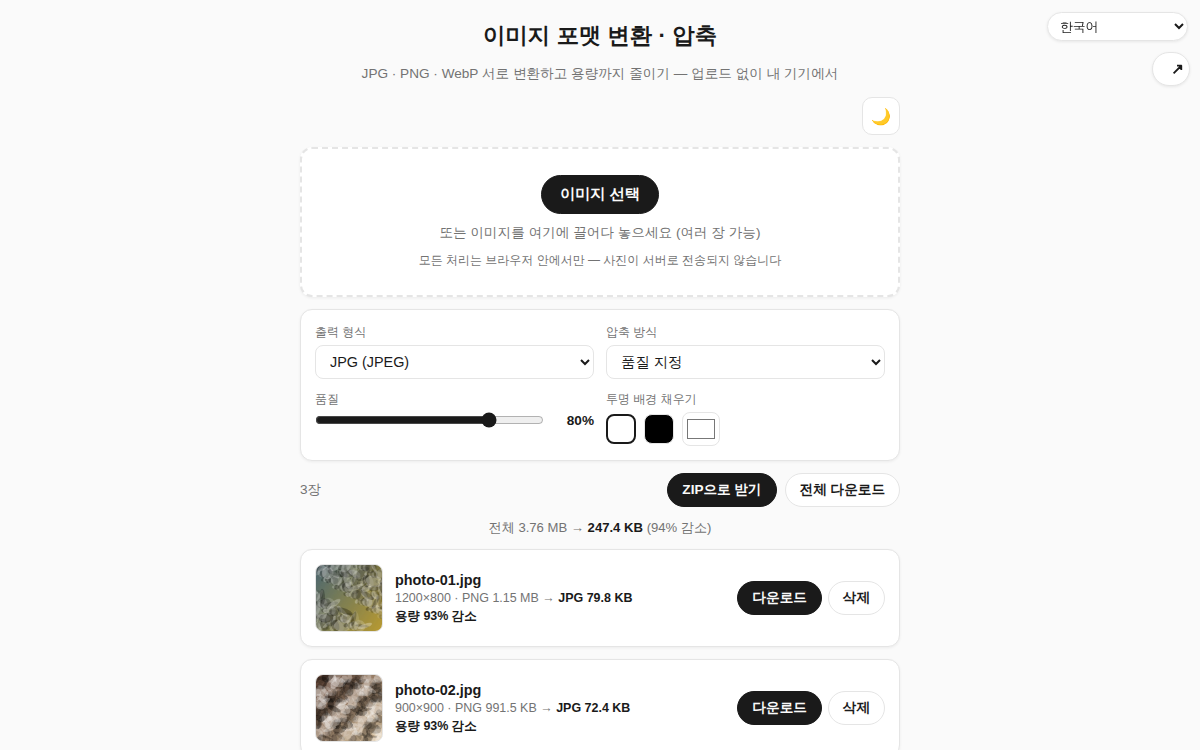
Convert photos freely between JPG, PNG and WebP, and shrink the file size while you are at it. Handle several images at once, and use "Fit target size" to have the app find the best quality that stays under the number of kilobytes you ask for. Every conversion runs inside your browser, so your photos are never sent to a server.
How to use
- Choose images or drag and drop them onto the page. Multiple files at once are fine.
- Pick the output format (JPG, PNG or WebP).
- Choose how to compress. By quality gives you a slider, while Fit target size automatically searches for the highest quality that stays under the KB limit you enter.
- Check the results, then download them one by one or grab everything as a ZIP.
Features and tips
- Each image shows how much smaller it got, and a running total is shown for the whole batch.
- When converting a transparent PNG to JPG, you can pick the fill color (white, black, or any custom color).
- WebP often produces a smaller file than JPG at comparable quality.
- For several images, the ZIP download is the quickest route. Duplicate file names are numbered automatically.
- Converting strips EXIF metadata (camera and location details), so this is also a handy way to clean a photo before sharing it.
- If you need to change the pixel dimensions themselves, pair this with Image Resize.
FAQ
Q. Are my photos uploaded anywhere? A. No. Reading the file and writing the new one both happen inside your browser. It even works with the network disconnected.
Q. Why do the quality settings turn off when I pick PNG? A. PNG is a lossless format, so a quality value does not apply. Choose JPG or WebP if your goal is a smaller file.
Q. It says the target size could not be reached. A. Even at the lowest quality the file is still larger than your target. Raise the target a little, or shrink the pixel dimensions with Image Resize first and try again.
Q. WebP or AVIF is missing from the list. A. Formats your browser cannot encode are removed automatically. Recent versions of Chrome, Edge and Safari all support WebP.