haneng — know your input mode before you start typing
If you have ever typed gksrmf into a search box, there is one reason: before you start typing there is no way to tell whether you are in Korean or English mode. haneng fixes that by showing a badge next to your cursor whenever you hover over a text field.
- Blue 한 — Korean mode
- Grey a — English lowercase
- Orange A — English with Caps Lock on (so a stray Caps Lock is obvious at a glance)
It is a lightweight background utility for Windows, macOS and Linux (X11).
What it reads — and what it does not
Since this tool watches your input state, here is exactly how far it goes.
- It never reads or changes the text you type. It only checks the cursor position and the current input mode.
- It does not use the network, except when you press the "Check for updates" button in settings yourself.
- On Windows and macOS it does not watch your keyboard. It simply asks the operating system what the current input mode is.
- Linux (X11) is the one exception. X11 has no API for querying input mode, so haneng watches only whether the Korean/English toggle key was pressed in order to track the mode. It sees the toggle, never the content.
Installing
The Download button opens the GitHub releases page.
- Windows —
haneng-windows.msi(recommended) · Runs right after install and starts with login - macOS 11+ (Apple Silicon) —
haneng-macos.zip· Requires Accessibility permission - Linux (X11) —
haneng-linux-x11.tar.gz· Experimental — no Wayland support
Windows — if SmartScreen warns you, choose "More info → Run anyway".
macOS — the app is not notarized with a paid Apple certificate, so downloads get a quarantine attribute. Opening it directly may show "the app is damaged and can't be opened" — the file is not damaged; the signature simply was not verified. Move the app to Applications and run:
xattr -dr com.apple.quarantine /Applications/haneng.app
open /Applications/haneng.app
Then add haneng under System Settings → Privacy & Security → Accessibility. macOS requires this permission for an app to read another app's input state.
Using it
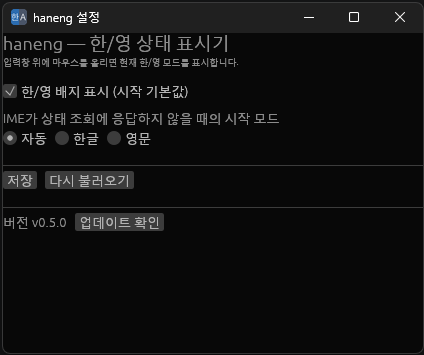
After installing you get a tray icon on Windows or a menu bar icon on macOS. From there you can toggle the badge, open settings, or quit. The Check for updates button in settings fetches new versions — one click on Windows, and on macOS and Linux it opens the download page.
FAQ
Q. Does it switch between Korean and English for me? A. No. It only tells you the current state. Automatic conversion existed in older versions (v0.3.x) and was removed in v0.4.0.
Q. The badge does not appear. A. On macOS, check that Accessibility permission is granted. In general, the badge only shows when you hover over an area that accepts text input.
Q. Does it work on Wayland? A. Only X11 is supported at the moment.
Q. Is it free? A. Yes, it is free.